Category: Guides

Tutorials and step-by-step guides to help you get the most out of Discord Message Planner Bot.

  • Elite Feature Pack for MsgPlanner

    🧩 What is the Elite Feature Pack in MsgPlanner

    MsgPlanner offers two usage tiers: a free plan with some limits and the Elite Feature Pack, a server-based premium subscription that unlocks the bot’s full potential.
    Each server can have its own subscription, independent from the others, giving full access to advanced scheduling, larger messages, and enhanced customization options.

    🔹 Free Plan

    The free plan allows you to:

    • create up to 3 active schedules per server
    • send messages up to 200 characters
    • set up to 5 repetitions per schedule
    • attach 1 image per message

    It’s ideal for testing MsgPlanner and scheduling simple announcements on your server.

    🔸 Elite Feature Pack

    With the Elite Feature Pack, you can go far beyond the basic limits:

    • up to 120 active schedules
    • messages up to 4000 characters
    • unlimited repetitions
    • attach up to 10 images per message
    • custom bot avatar per server

    ⚖️ Comparison Table

    FeatureFree PlanElite Feature Pack
    Active schedules3120
    Message length200 characters4000 characters *
    RepetitionsUp to 5Unlimited
    Images per message1Up to 10
    Custom bot avatar

    * To write up to 4000 character in Discord app, Nitro is required. Without Nitro, Discord allows users to write up to 2000 characters. Web Dashboard works up to 4000 chracters without Nitro subscription


    ⚙️ How to Get the Elite Feature Pack

    There are three ways to unlock the Elite Feature Pack:

    🧪 1. Free Trial

    Every server can start a 2-week free trial.
    Use the /subscription_status command on Discord and click the button to start your free trial (once for server).
    During the trial, you’ll have full access to all premium features.


    💎 2. Discord Store Subscription

    You can purchase the Elite Feature Pack directly from the official Discord App Store for $2.99 + taxes per month.
    Accessible from both:

    The subscription is handled securely by Discord and renews automatically unless cancelled.


    🗳️ 3. Voting on Top.gg

    You can also earn free credits by voting for MsgPlanner on Top.gg

    Each vote (every 12 hours) gives credits to the user who voted.
    All server members can vote — the more people vote, the faster your server can accumulate credits.

    After voting, users must transfer their credits to the server they want to support using the /my_credits command.
    Then, the server owner or an authorized admin can redeem those credits with /manage_credits to activate the Elite Feature Pack.

    It takes 40 credits to redeem 1 week of Elite access, and a server can redeem up to 16 weeks per year through votes.

  • How to Schedule Discord Messages: Master Recurring Messages with MsgPlanner

    How to Schedule Discord Messages: Master Recurring Messages with MsgPlanner

    Recurring messages are essential for keeping your Discord server organized, whether for event reminders, announcements, or regular updates. With MsgPlanner, you can easily schedule Discord messages to repeat automatically at intervals you define. Let’s dive into the details of how MsgPlanner’s recurring scheduling works and how it simplifies server management.


    Setting Up Recurring Activations in MsgPlanner to schedule Discord messages

    If you’re familiar with sending delayed messages on Discord using MsgPlanner, you already know the basics: you provide a message, optional attachments, and a start date. With recurring schedules, you’ll also set an interval and an optional end date, giving you complete control over when and how often your messages are sent.

    The Basics of Recurring Scheduling

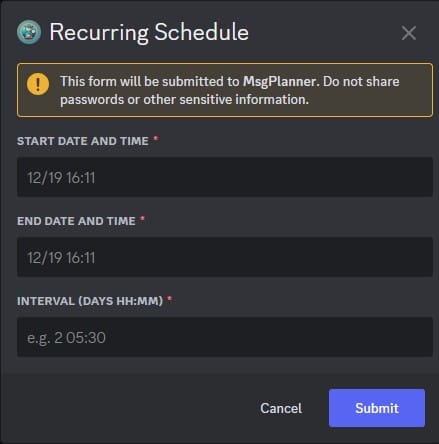
    After using the /schedule_msg command and selecting the Recurring Activation option, MsgPlanner will guide you through the following steps:

    1. Select a Channel: Choose the Discord channel where you want your messages to appear.
    2. Compose a Message: Write your message and add any attachments if needed.
    3. Define Schedule Details:
      • Start Date: The exact date and time when the first message should be sent.
      • End Date (optional): The date when the recurring schedule should stop.
      • Interval: The time between each message.

    Flexible Date Formats: The system recognizes both US (month/day) and European (day/month, day-month, day.month) formats for date, adapting to your Discord settings.


    How the Start Date and Interval Work Together

    The Start Date serves as the reference point for all subsequent messages. Every activation is calculated based on this date, ensuring precision and consistency.

    The Interval defines the gap between messages. For example:

    • To send a message every 1 hour and 30 minutes, input 0 01:30 (0 days, 1 hour, and 30 minutes).
    • This format requires:
      • A space between days and hours.
      • A colon (:) between hours and minutes.

    Important Notes:

    • The interval strictly follows the format days hours:minutes, ensuring compatibility across all time zones in the discord app, meanwhile in the dashboard we have 3 separate input for each parameter.
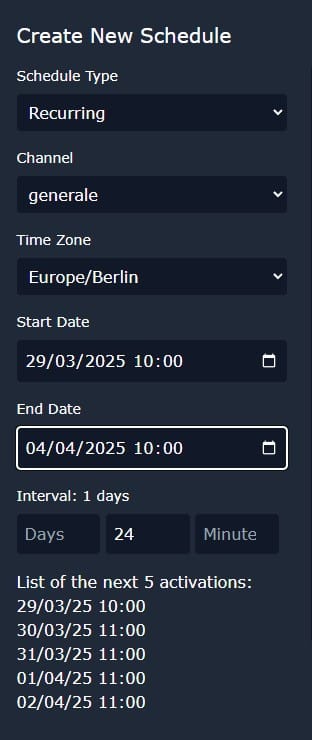
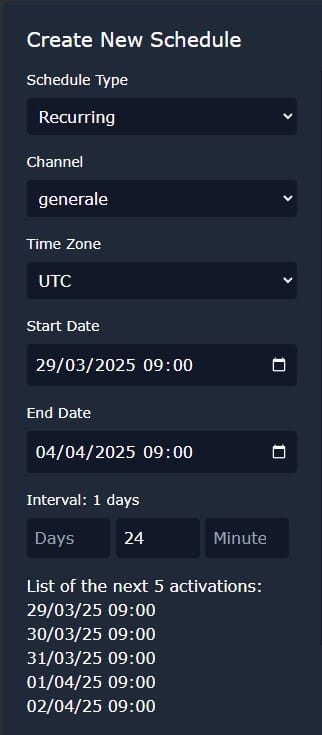
    • Keep in mind that Daylight Saving Time (DST) can affect the timing if you’re scheduling based on hours. For example:
      • A message scheduled for 24-hour intervals starting on March 29th at 10:00 (Europe/Rome) will be sent at March 30th at 11:00, maintaining a consistent 24-hour span.
      • When viewed in UTC, these activations are consistently at 09:00.

    Use the Web Dashboard for Precision Control

    MsgPlanner’s web dashboard offers a visual way to manage and monitor your recurring schedules. It calculates the next five activations for you, allowing you to verify timing and make adjustments as needed. This helps you maintain full control and ensures your messages are delivered exactly when intended.

    Key Features of the Web Dashboard:

    • Preview Scheduled Activations: See the upcoming dates and times for your recurring messages.
    • Localized Time Zones: The dashboard displays times in the list of next activations based on the Start Date and End Date settings, not the user’s local time.

    Why Use Recurring Schedules to schedule Discord messages?

    Recurring schedules in MsgPlanner are incredibly versatile. They’re perfect for creating reminders for recurring events, such as weekly meetings, regular announcements, or routine updates for your community. By automating these tasks, you can ensure consistency and free up time to focus on what really matters in managing your server.

    Whether it’s reminding your members of a monthly event or setting up daily updates, MsgPlanner’s recurring feature makes sure your messages are timely and effective. Take full advantage of this tool to keep your server running smoothly and your members engaged!

    To start schedule discord messages, access the web dashboard at https://dashboard.discordmessageplannerbot.com, and for further assistance, visit our support server: https://discord.gg/cWmx34vyxx.

  • Send Delayed Message on Discord with MsgPlanner in 4 steps

    Send Delayed Message on Discord with MsgPlanner in 4 steps

    MsgPlanner bot is a powerful Discord message scheduler that lets you send delayed messages on discord with precision and ease. Whether it’s a reminder, announcement, or important note, MsgPlanner ensures your message is delivered at the exact time you set.

    To get started, visit the MsgPlanner Bot Setup Guide for initial configuration.

    In this article, we’ll cover how to send a delayed message on Discord using MsgPlanner bot’s ‘Single Activation’ option, perfect for one-time message delivery.


    How to Send Delayed Message on Discord with MsgPlanner in app

    To schedule a delayed message using MsgPlanner, follow these simple steps:

    1. Use the Command /schedule_msg

    • In a Discord text channel, type the slash command:bashCopia codice/schedule_msg
    • A dropdown menu will appear. Select “Single Activation” to send a one-time delayed message.
    send delayed message on discord - schedule type Single
    send delayed message on discord – schedule type Single

    2. Choose a Channel

    • You will be prompted to mention a channel where the message will be sent.
    • Use the # symbol to mention the desired channel, e.g., #general, and send it in the chat.

    Note: Make sure the bot has the correct permissions to send messages and manage webhooks in the chosen channel.


    3. Enter Your Message and Attachments

    • The bot will now ask you to:
      • Enter the message you want to send.
      • Optionally, upload any attachments like images, files, or documents.

    4. Set the Date and Time

    • Once you’ve sent the message and attachments, MsgPlanner will provide a button labeled “Enter schedule details”.
    • Click the “Enter schedule details” button to open the input mask for selecting the date and time when you want the message delivered.
    • Enter the time in the correct format (e.g., 6/10 15:30 for June 10th, 3:30 PM).
    send delayed message on discord - date and time
    send delayed message on discord – date and time

    Confirmation

    • If the date and time format is correct, MsgPlanner bot will reply with a confirmation message, indicating the message has been successfully scheduled.
    • The bot will handle the rest and will send a delayed message on discord at the specified time.

    Example Workflow

    1. Command: /schedule_msg → Select “Single Activation”.
    2. Channel Mention: #announcements.
    3. Message: “Team meeting today at 4 PM!”
    4. Attachments: (Optional) Upload a meeting agenda file.
    5. Set Time: 6/10 15:30.
    6. Confirmation: MsgPlanner bot confirms the schedule.


    How to send Delayed Message on Discord from the Web Dashboard of MsgPlanner

    If you prefer managing your schedules via a web interface, MsgPlanner bot offers a dedicated web dashboard for easy message scheduling:

    Access the Dashboard

    Choose Your Server

    • Log in using your Discord account.
    • Select the server where you want the message to be sent.

    1. Create a New Schedule

    • Click on the “New Schedule” button. This will open the mask where you can enter all the details of the schedule:
      • Schedule Type: Select “Single”. This option ensures that the message will be sent just once.
      • Channel: In the dropdown menu, you’ll see all the channels where the bot has access.
        • If the channel you want to use is missing, check that the bot has the appropriate permissions to access it.
      • Time Zone: By default, the time zone selected during your first configuration will be applied. This affects the time the message will be sent.
      • Start Date: Set the exact date and time when you want the message to be sent, based on the selected time zone.
    send delayed message on discord from web dashboard
    send delayed message on discord – web dashboard

    2. Compose Your Message

    • In the box labeled “Write your message…”, type your message content.
      • Mention users and roles using @ (e.g., @username or @role), just like in the Discord app.
      • Mention channels using # (e.g., #general).
    • A preview of the message will appear at the bottom of the box.
    • Above the text box, you’ll find several buttons that allow you to customize the message using Discord’s markup formatting.

    3. Attach Images or Files

    • If needed, click on the “Upload Files” button to attach images or files to your message.

    4. Save and Confirm

    • To confirm your delayed message on Discord, click the “Save Schedule” button.
    • Your message will now appear in the list of active schedules and will be delivered at the specified time.

    Key Features of MsgPlanner to send delayed Messages on Discord

    • Simple Commands: Easy-to-follow prompts for quick scheduling.
    • Channel Flexibility: Send messages to any channel with proper permissions.
    • Attachments Supported: Include images or files alongside your message.
    • Reliable Delivery: Your message is guaranteed to be delivered at the scheduled time.

    Conclusion

    Send a delayed message on Discord has never been easier with MsgPlanner bot. Whether you prefer the in-app commands or the feature-rich web dashboard, MsgPlanner ensures your messages are delivered exactly when needed.

    For more advanced features, like recurring messages or calendar scheduling, stay tuned for our upcoming guides. Start scheduling your delayed messages today with MsgPlanner! 🚀

  • Getting Started with MsgPlanner Bot

    Getting Started with MsgPlanner Bot

    MsgPlanner Bot is designed to join your Discord server with minimal permissions. To make the most of it, follow these simple steps.


    1. Setting Up Bot Permissions

    After inviting MsgPlanner Bot to your server, you need to grant it view permissions for private channels to work correctly. Currently, only users with Manage Server permissions can use the bot (future updates will allow role-based access).

    Verify the Bot’s Presence

    Make sure MsgPlanner Bot is listed among the channel members


    2. Configuring the Time Zone

    When scheduling messages, the bot cannot automatically detect your time zone. To avoid scheduling errors, it’s crucial to set your personal time zone. This configuration applies:

    • To the user (not the guild).
    • As the default time zone when using the web interface for scheduling.

    How to Set Your Time Zone

    1. Use the slash command /settings in the Discord app.
    2. Click on the “Change Timezone” button.
    3. Select your time zone from the list (limited to 25 common options).
    4. Receive a confirmation message for the update.

    3. Troubleshooting Common Issues

    1. The slash command does nothing

    • Check if the bot is online:
      • Make sure MsgPlanner Bot is online and invited to your server.
      • Verify that direct messages from server members are enabled in your Discord settings.

    2. The bot sends direct messages instead of replying in the channel

    If the bot sends you a direct message, follow the instructions provided. There are two common issues:

    1. The bot doesn’t have permission to view the channel:
      Grant the bot view permissions for the channel.
    2. The bot doesn’t have permission to write in the channel:
      Grant the bot write permissions for the channel.

    3. The bot isn’t present in the channel

    If MsgPlanner Bot isn’t listed among the channel members:

    • Check whether the bot has the necessary permissions to access the channel.

    Need more help?

    If the issue persists, contact the official support team on the dedicated server:
    MsgPlanner Bot Support Server.


    4. Free Trial of the Elite Feature Pack

    By default, MsgPlanner Bot joins your server with limited features. However, you can try the Elite Feature Pack for free for 2 weeks:

    1. Use the slash command /subscription_status.
    2. Click the “Activate the Free Trial” button to enable the trial version.

    Explore all the premium features during the free trial and maximize the bot’s potential!

    Learn more about Elite Feature Pack


    Conclusion

    By following these steps, you’ll be able to set up and use MsgPlanner Bot effectively. If you have any questions or issues, don’t hesitate to reach out through the official support server.