
Writing a message that will be delivered later is an act of trust: you won’t be there when it lands. MsgPlanner’s editor is built so that what you see while writing is exactly what Discord will show — every markdown feature, mentions resolved with real names and colors, your server’s emojis, and the real character limits, live.
The editor lives in the web dashboard. Schedules written here can still be managed — suspended, resumed, deleted — from inside Discord.
Two views, one message
Write visually — bold, lists and quotes applied as you type — or switch to the raw Discord markdown view and edit the source directly, GitHub style. The two views are always in sync and nothing gets lost in between: markdown the editor doesn’t model passes through untouched, byte for byte. Paste a message you already use elsewhere and it survives exactly as it is.
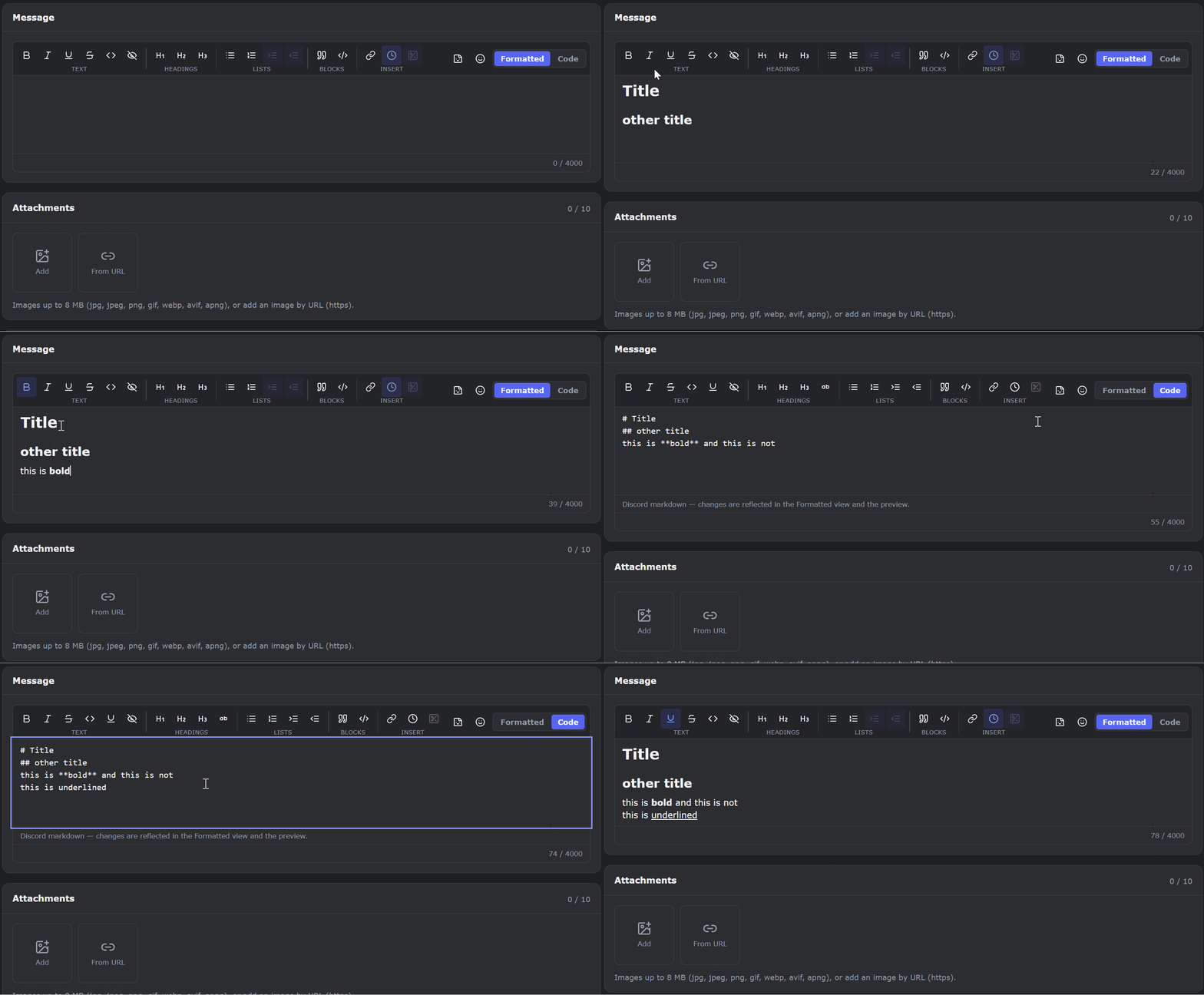
Every Discord formatting feature — verified for real
Discord’s formatting is documented in its own Markdown Text 101; here is how MsgPlanner supports it, tested with real deliveries (not just previews):
| Syntax | Renders as | In messages | In embed descriptions | In embed field values |
|---|---|---|---|---|
**text** | bold | ✓ | ✓ | ✓ |
*text* | italic | ✓ | ✓ | ✓ |
__text__ | underline | ✓ | ✓ | ✓ |
~~text~~ | strikethrough | ✓ | ✓ | ✓ |
`code` | inline code | ✓ | ✓ | ✓ |
```lang | syntax-highlighted code block | ✓ | ✓ | ✓ |
# ## ### | headings H1-H3 | ✓ | ✓ | — (Discord renders them literal there) |
-# text | subtext (small line) | ✓ | ✓ | ✓ |
- text / 1. text | lists, nestable | ✓ | ✓ | ✓ |
> text | quote | ✓ | ✓ | ✓ |
||text|| | spoiler | ✓ | ✓ | ✓ |
[label](url) | masked link | ✓ | ✓ | ✓ |
<t:…:R> | Discord timestamp | ✓ | ✓ | ✓ |
Formatting nests like on Discord: bold with italic and code inside, mentions inside bold, formatted text inside list items, lists inside quotes. The editor even adapts per context: when you’re writing an embed field, the buttons for things Discord won’t render there simply aren’t offered.
Embed titles, author and footer lines have their own stricter rules (inline markdown in titles, plain text in author/footer) — the editor enforces them too. Structure and limits of embeds live on the embed builder page.
Mentions and channels, the natural way
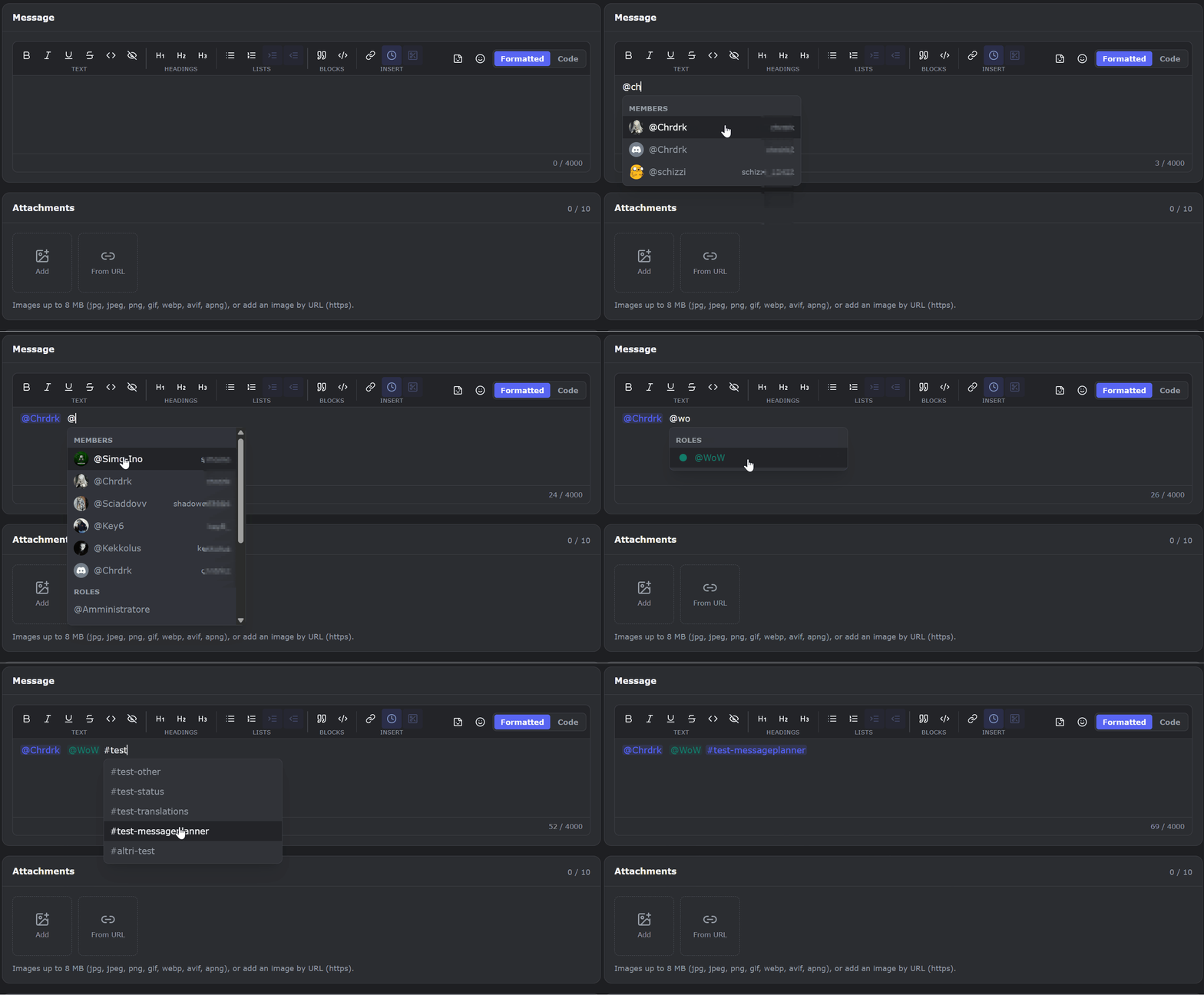
Type @ and pick from a dropdown of your members, roles, @everyone and @here — with avatars; type # for channels. No IDs, no <@…> syntax to remember: picks are inserted as atomic tokens (one backspace deletes the whole mention) and the preview shows them resolved, with the role’s actual color. Under the hood they become the exact Discord tokens, so pings work at delivery.
Your emojis — and all the standard ones
Two pickers, like Discord itself: one for your server’s custom emojis (animated included), one for the full standard emoji set, rendered with the same Twemoji artwork Discord uses — so the preview matches the delivery there too.
Timestamps that think in everyone’s timezone
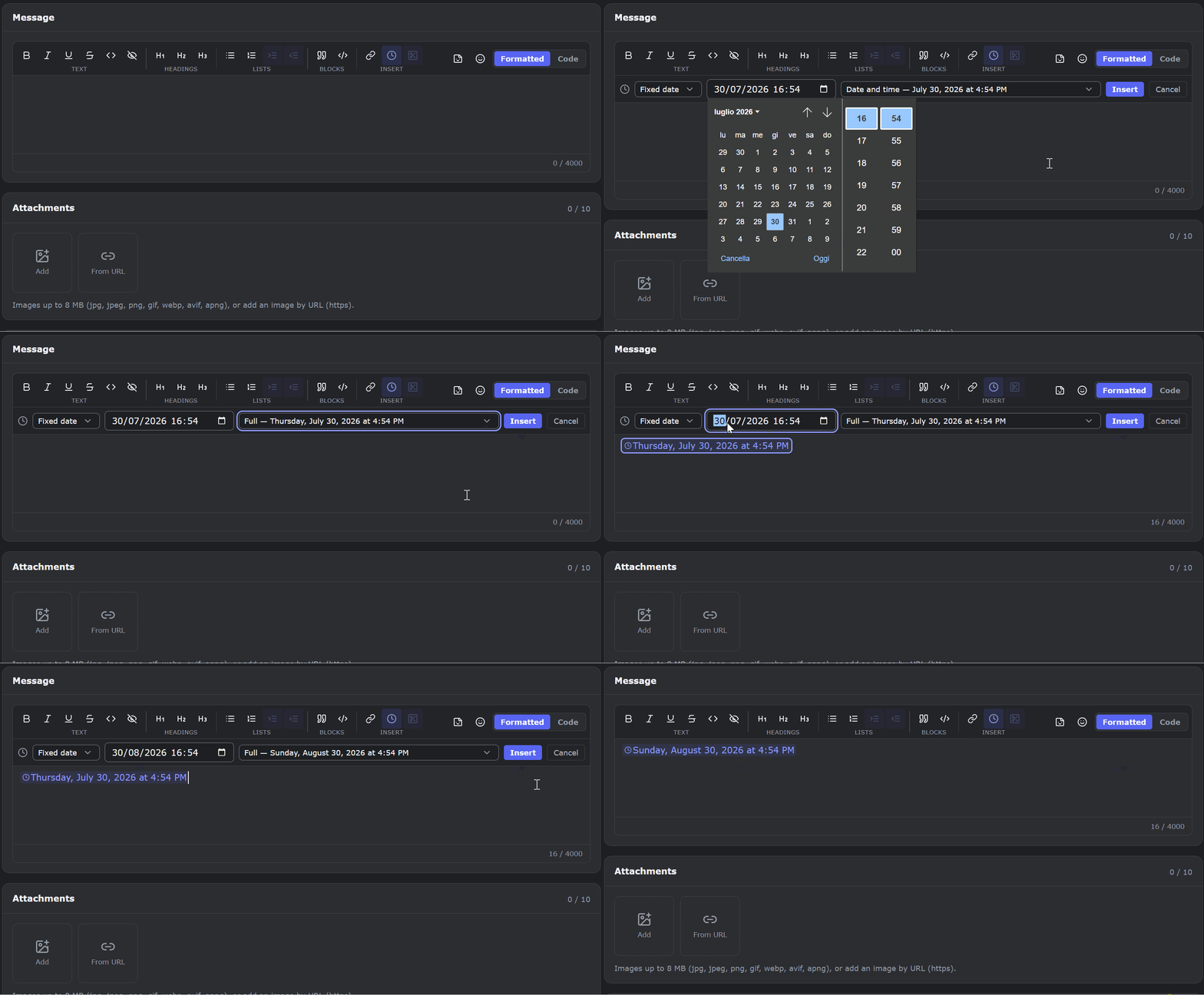
Insert a Discord timestamp from the toolbar and every reader sees it in their own local time — as a date, a time, or a live countdown. Scheduled messages can even embed the next delivery time dynamically, so a recurring reminder always shows when the next one lands. Full styles and tricks will get their own guide soon.
A preview that tells the truth
The preview renders with the same rules Discord uses — same margins, same elements — and it respects the real limits of your plan: characters beyond the cap are highlighted while you type, and the preview shows the message as it will actually be delivered, not an idealized version. What you fix here is a problem you won’t have in production.

FAQ
Does Discord markdown work in scheduled messages?
Yes — all of it: bold, italic, underline, strikethrough, headings, lists, quotes, spoilers, code blocks, masked links and timestamps. MsgPlanner’s editor supports the full set, with a live preview.
Can I mention roles and users in a scheduled message?
Yes. Type @ and pick from the dropdown; mentions are delivered as real pings. For @everyone the bot needs the Mention Everyone permission in the target channel.
Does formatting work inside embeds?
Yes — descriptions support everything including headings; field values support everything except headings; titles take inline formatting; author and footer are plain text. The editor only offers what will actually render in each spot.
Can I use my server’s custom emojis?
Yes, animated ones included, picked from a dedicated menu. Emojis from other servers can’t be used — same rule as Discord itself.
Is there a character limit?
Plan limits are 200 characters on the free plan and 4,000 on Elite; since Discord itself caps a single message at 2,000, longer Elite messages are automatically split into consecutive messages at delivery. Embeds have Discord’s 6,000-character total. The editor counts and highlights any overflow live. Details on the pricing page.
Can I write the markdown by hand instead?
Yes — the Code view is a raw markdown editor with insert buttons, and it stays in sync with the visual view. Nothing you write by hand gets reformatted.
Do code blocks support syntax highlighting?
Yes. Open a code block with a language tag — js, python, json and dozens more — and Discord colors it at delivery. MsgPlanner’s preview highlights it the same way while you write, so the snippet you see is the snippet that lands.
Is the editor available inside the Discord app?
The full editor — toolbar, live preview, dynamic timestamps, embeds — lives in the web dashboard. Inside Discord, the scheduling wizard takes a real message you type (so Discord’s own mentions and emojis work), without preview or embeds. Managing schedules — suspend, resume, delete — works from both.