A calendar schedule sends a message when the calendar says so — every Monday at 9:00, on the 1st and the 15th, on the last day of the month — instead of every N hours. Discord has no native way to do this; with MsgPlanner you build it visually from the dashboard, and a guided wizard picks the right setup for you if you’d rather answer two questions than think in recurrence rules.
Calendar schedules are created in the web dashboard (the in-app wizard covers one-time and recurring); once created, they can be suspended or deleted from Discord too.
Calendar or recurring? Pick the right tool
MsgPlanner has two repeating schedule types, and choosing well saves you headaches:
- Recurring repeats at a fixed distance: every 45 minutes, every 6 hours, every 3 days. The clock time can drift across months and DST — it’s the right tool for “every N”.
- Calendar fires at wall-clock times you choose: “Monday and Thursday at 18:30”, “the 1st of the month at 9:00”. It’s the right tool whenever you’d describe the plan with days and times rather than a distance.
Rule of thumb: if your sentence contains a weekday, a month day or a clock time, you want calendar.
What calendar schedules can express
All of these are a single calendar schedule in MsgPlanner:
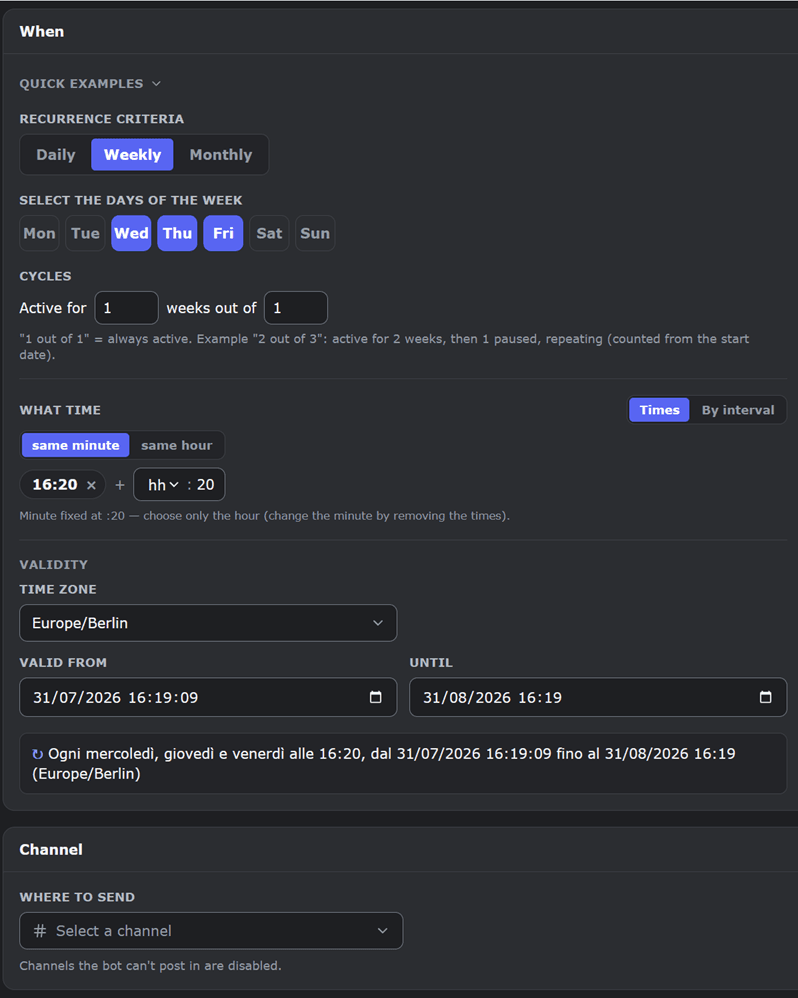
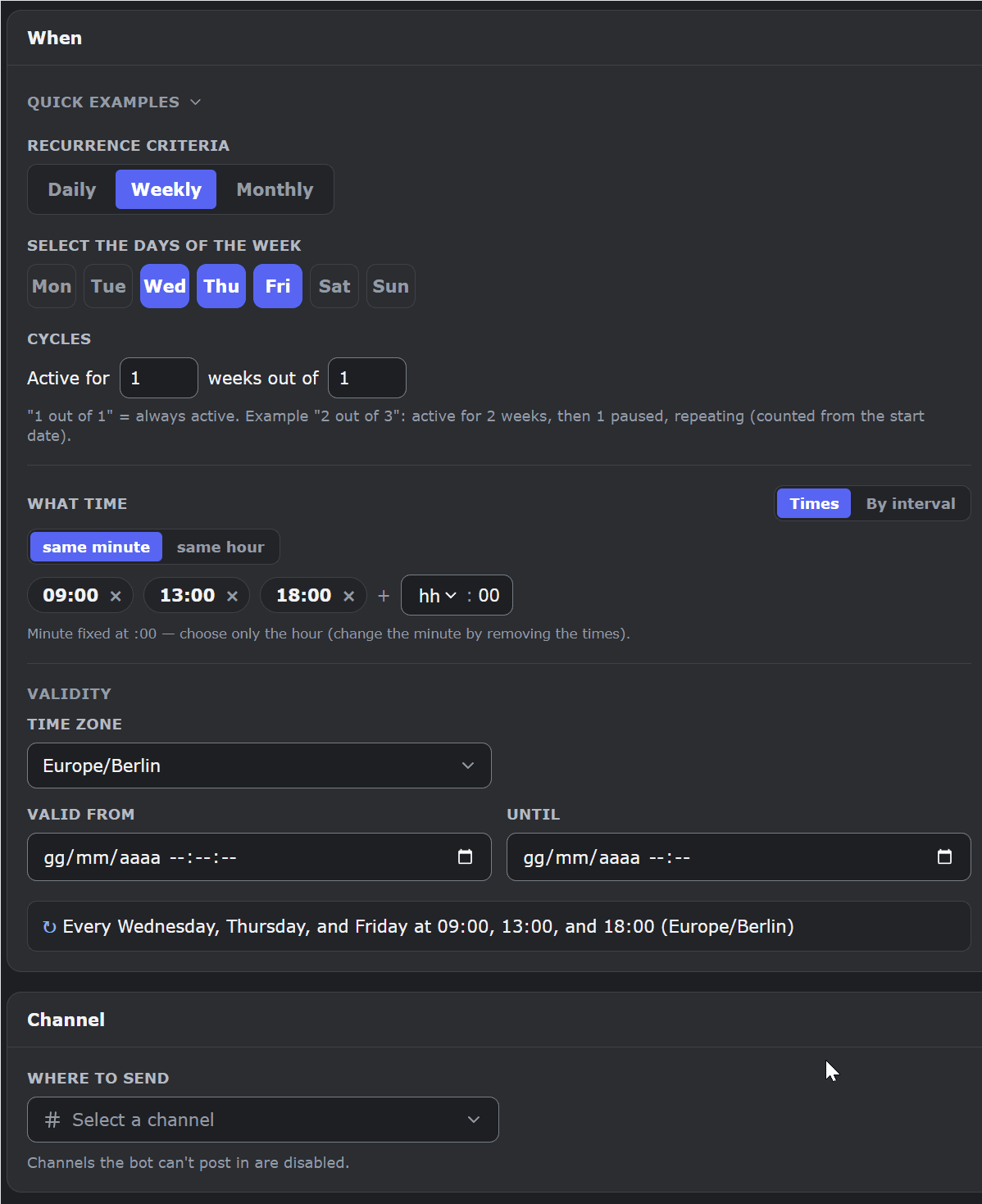
- Weekly patterns — every Monday, Wednesday and Friday at 9:00;
- Multiple times a day — 9:00, 13:00 and 18:30, every day or only on chosen weekdays;
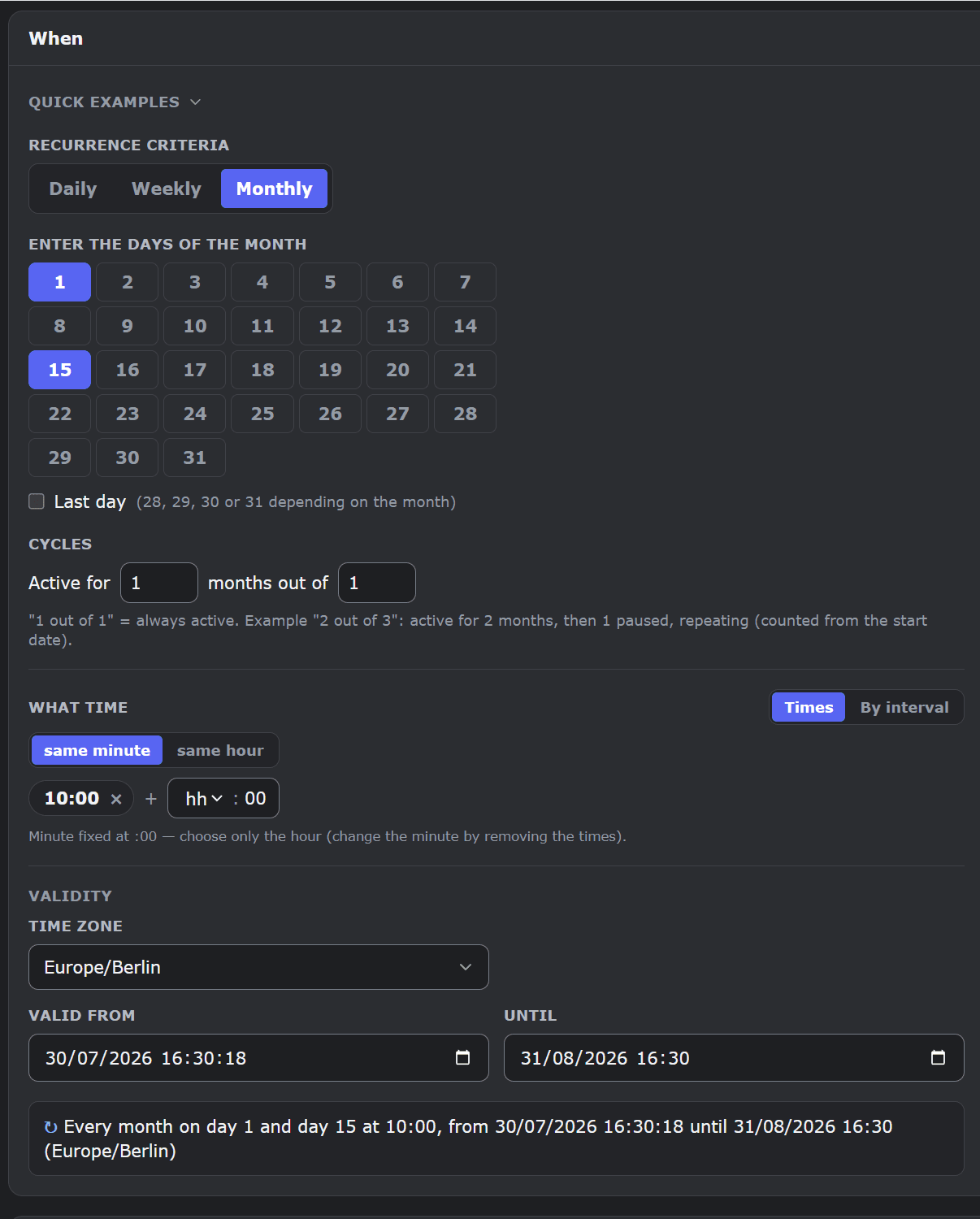
- Month days — the 1st and the 15th at 10:00; payday reminders on the 27th;
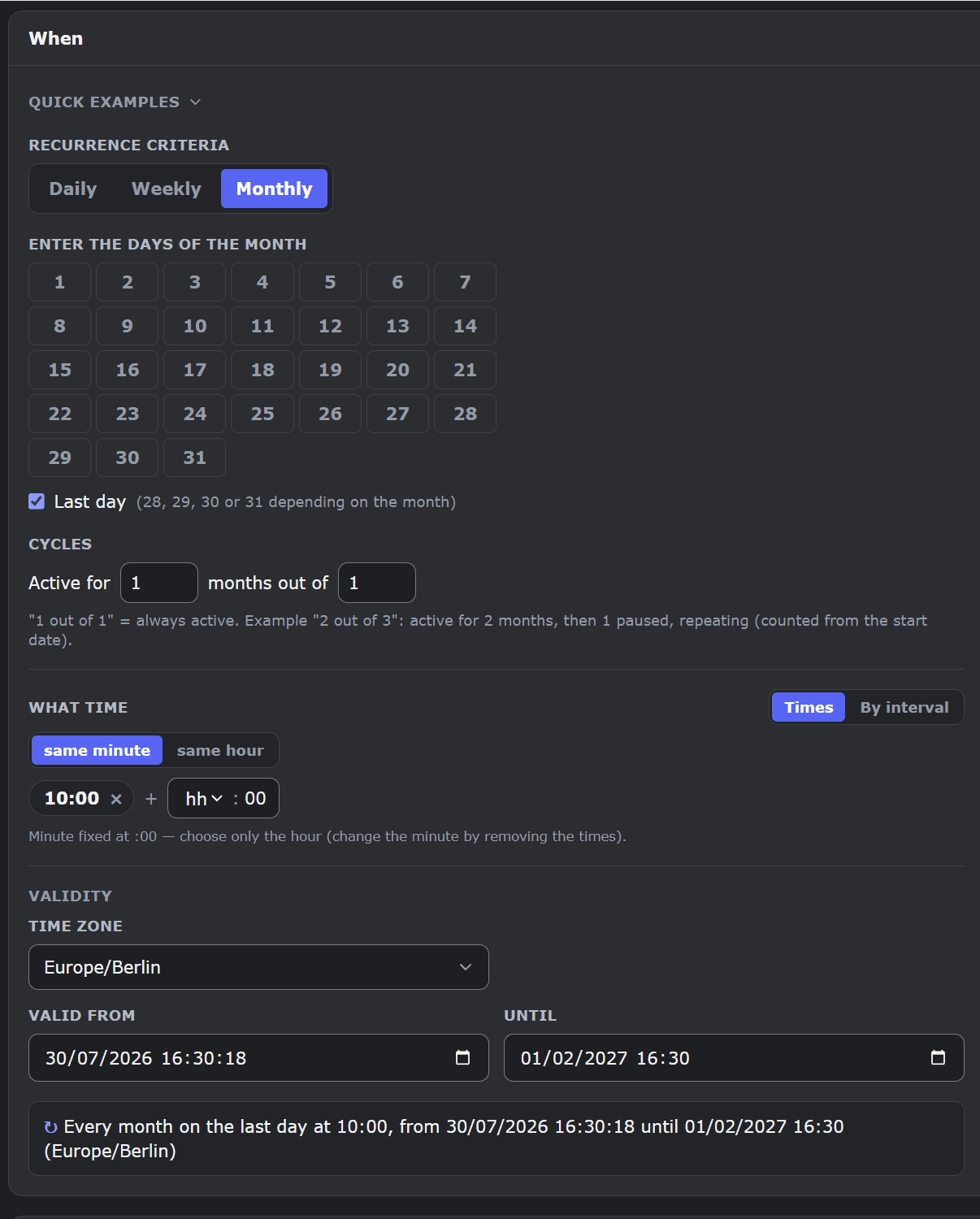
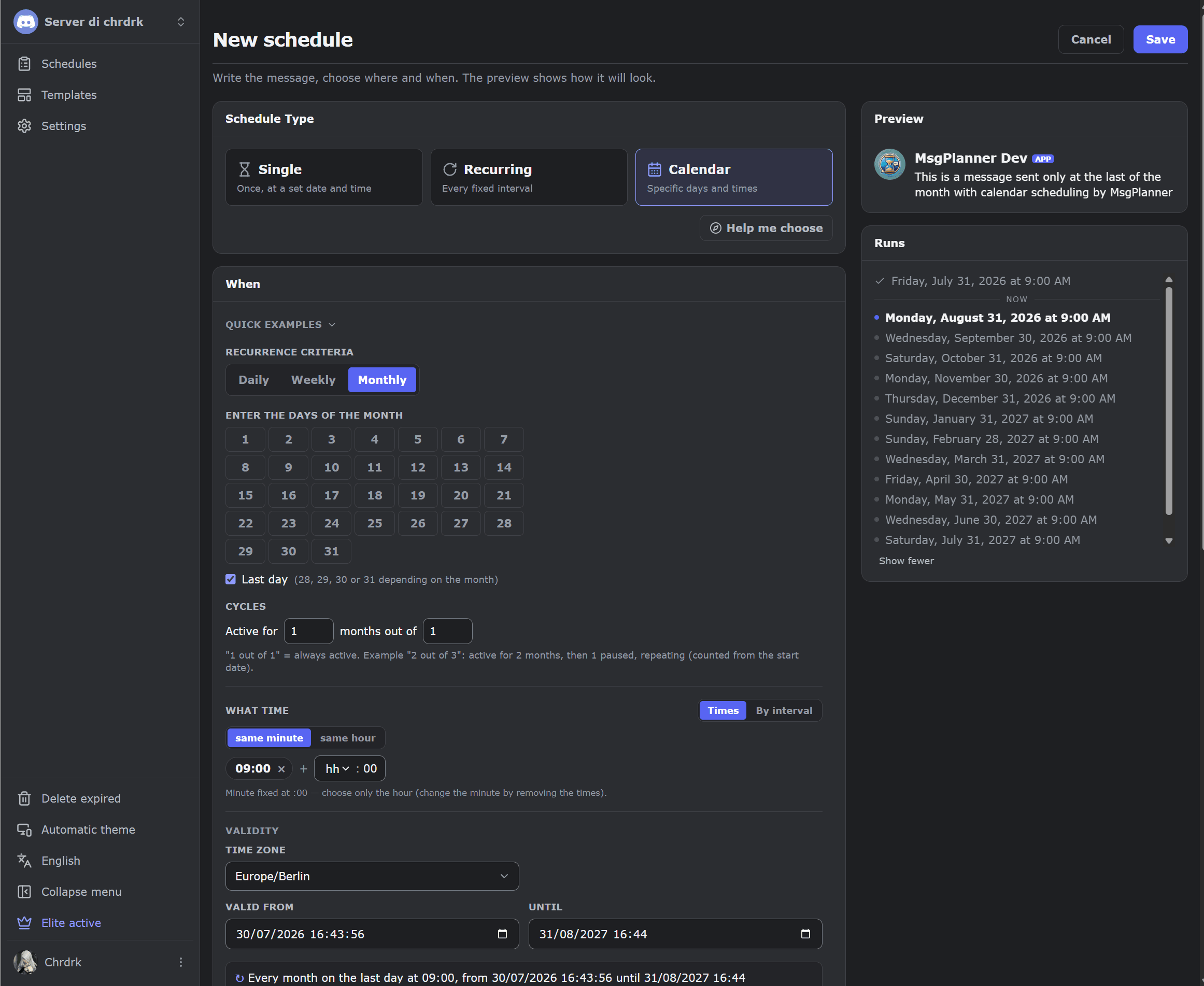
- The last day of the month — a real “last day” option, whether that is the 28th, 30th or 31st (no cron gymnastics needed);
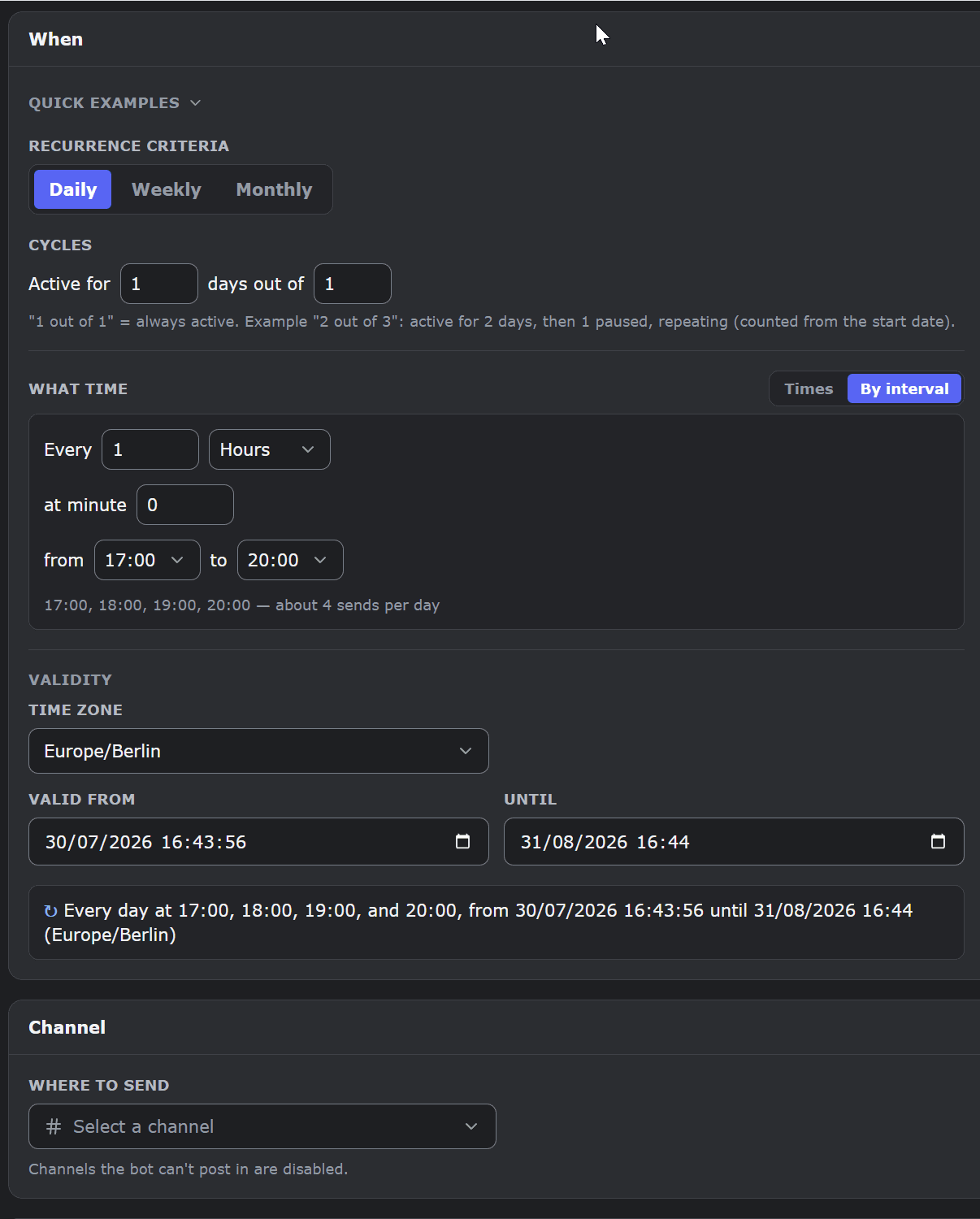
- Time windows with intervals — every hour from 17:00 to 20:00, or every 5 minutes between minute 10 and minute 20 of specific hours;
- Cron under the hood — every calendar schedule is stored as a standard cron expression, and the runs panel always previews the next activations. Advanced expressions (say, from an edited export file) are preserved exactly as-is when you edit the schedule — you never have to write cron yourself.
Not sure? Let the wizard decide
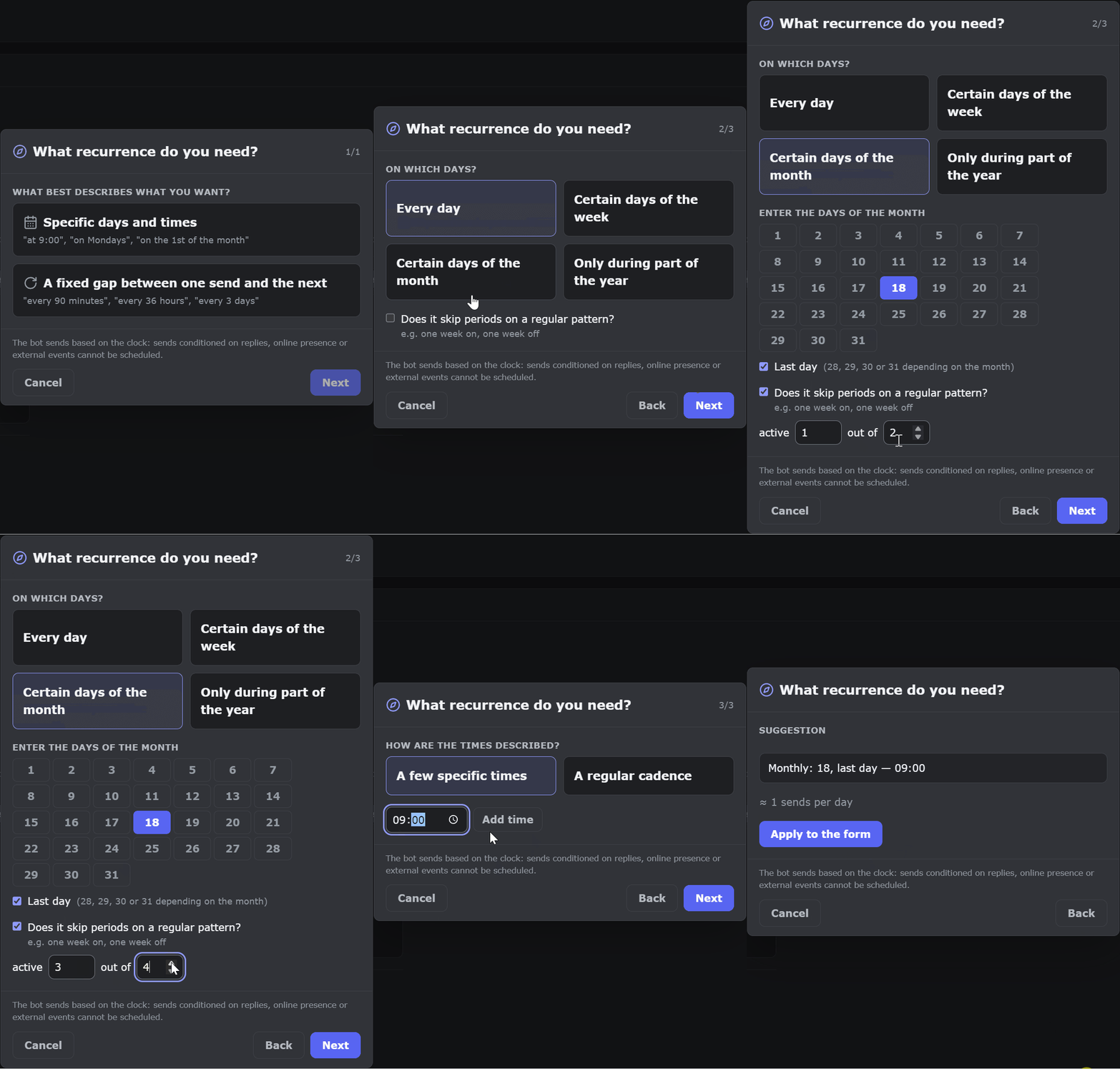
The dashboard includes a small recurrence wizard: tell it what you’re trying to do — “a few precise times on some days”, “something every N minutes within a window” — and it proposes the exact setup, or honestly tells you when your plan needs two schedules instead of one. You can always tweak the result afterwards; nothing the wizard builds is locked.
Four real setups, problem → solution
“Event night is every Friday at 18:00 — every announcement should tell people when the next one is.” Calendar schedule → weekday Friday, time 18:00, your timezone. In the message: Game night starts now!{{visibleIfNext}} Next session {{nextRun:R}} — two tags the editor inserts for you. At delivery, {{nextRun}} expands to the following activation, rendered by Discord as a live countdown (“in 6 days”) in each reader’s own timezone; and on the very last delivery {{visibleIfNext}} trims everything after itself, so the final night never advertises a session that doesn’t exist.
“Payday post on the last day of the month, at 9:00.” Calendar schedule → month days → enable Last day of the month, time 9:00. February’s 28th, April’s 30th and July’s 31st are all handled by the same option — this is the case where raw cron makes people suffer, and here it’s a checkbox.
“Lobby announcements at 9:00, 13:00 and 18:30, but only on weekends.” One calendar schedule → weekdays Saturday + Sunday, three times added to the list. No need for three schedules: times and days combine.
“Keep the channel warm during prime time: one bump every hour, 17:00 to 20:00.” Calendar schedule → switch the time axis to interval mode → every 1 hour from 17:00 to 20:00. The summary shows exactly which activations that produces before you save.
“Every 6 hours, whatever the clock says.” That one is not a calendar — it’s a plain recurring schedule (every N). Rule of thumb from the top of this guide: distances → recurring, days and clock times → calendar.
Timezones and daylight saving time
Every calendar schedule runs in the IANA timezone you pick (say, Europe/Rome or America/New_York): “18:30” means 18:30 in that zone, year-round. Daylight saving is handled for you — when the clocks change, the message keeps firing at the same wall-clock time. Start and end dates define the window in which the calendar is active.
How to create one, step by step
- Open the dashboard, create a schedule and choose Calendar.
- Pick the destination — any text or announcement channel, a thread, or a forum post.
- Write the message: full formatting, embeds, images, mentions, dynamic timestamps that always show the next run in each reader’s local time.
- In the “When” panel choose your days (weekdays or month days), your times — or switch to interval mode for time windows.
- Set start date, end date and timezone, check the preview of the **next five activations** — what you see there is exactly what will fire — and save.
Common mistakes (and how to dodge them)
- Right time, wrong timezone. “18:30” means 18:30 in the schedule’s timezone — not your PC’s. If deliveries land an hour off, check the zone on the schedule before touching the times.
- Forgetting the end date. Calendar and recurring schedules require one: it’s the fence that tells the bot when to stop. Want it to run “forever”? Set the end date far ahead — you can always extend it.
- Using recurring for wall-clock plans. “Every 24 hours” drifts when DST changes the clock; “every day at 9:00” as a calendar schedule never does. If the wall-clock time matters, calendar is the tool (recurring schedules also offer a DST-follow option, for the cases in between).
- The forum post doesn’t appear in the selector. It’s archived: Discord only lists active posts. Open it once and retry — details in our guide to forum and thread delivery.
- The reminder channel fills up with copies. A weekly reminder doesn’t need a scrollback of forty identical messages: turn on **auto-clean → keep only the latest**, and every delivery replaces the previous one — the channel always shows a single, current copy. (There’s also “delete after a delay”, from 1 minute to 30 days, for pings that should expire.)
FAQ
Can Discord send scheduled messages natively?
No. Discord has no built-in message scheduling — you need a bot. MsgPlanner adds one-time, recurring and calendar schedules with a visual editor.
How do I send a message every Monday on Discord?
Create a calendar schedule, select Monday as the weekday, set the time and timezone, and save. The message fires every Monday until the end date.
Can I schedule a message for the last day of the month?
Yes — calendar schedules have a dedicated “last day of the month” option that works for 28-, 30- and 31-day months alike.
Can one schedule fire at several times a day?
Yes: add multiple times (9:00, 13:00, 18:30…) or use interval mode (“every hour from 17:00 to 20:00”) in a single calendar schedule.
What timezone do scheduled messages use?
The one you pick per schedule (IANA zones like Europe/Rome). DST is handled automatically: the message keeps its wall-clock time year-round.
Do I need to know cron?
No. Days and times are visual choices; the wizard can build the recurrence for you. Under the hood every schedule is a standard cron expression, but you never have to write one.
Can I create a calendar schedule from the Discord app?
No — calendar schedules are created and edited in the web dashboard; the in-app wizard covers one-time and recurring schedules. Once created, you can suspend, resume or delete a calendar schedule from the app too.